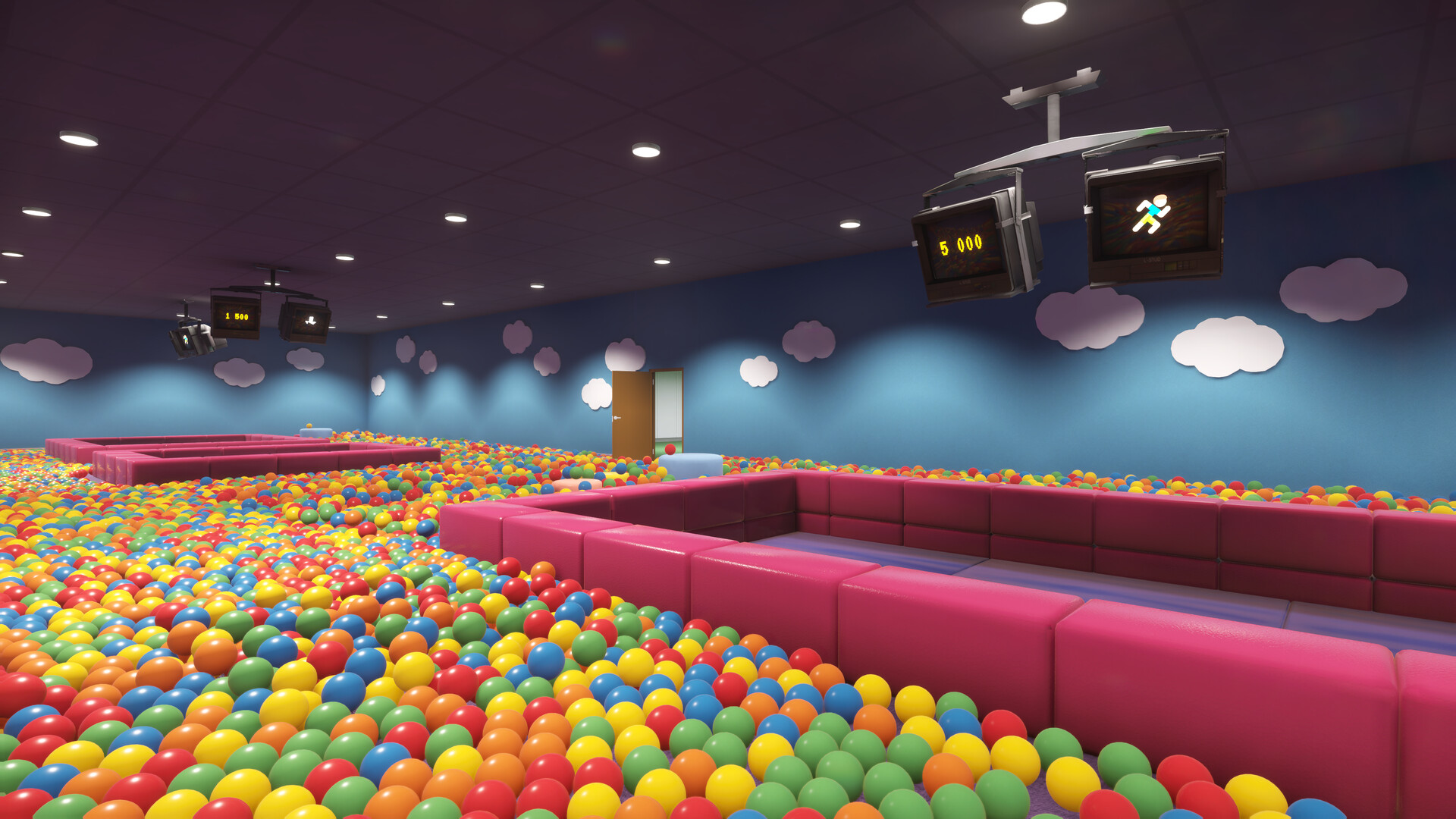
What Playrooms Is and Where to Start
Playrooms is a single-player cleaning simulation with psychological horror from Two Pixels UG: collect scattered balls, return them to ball pits and survive your shifts. Start on Windows PC through Steam with the paid full game or the separate free Playrooms Demo.
Identify the Game and Understand the Job
Look for Playrooms with Two Pixels UG listed as both developer and publisher. The full game was released on November 4, 2026, and its supported Steam platform is Windows. Its Backrooms-inspired environments turn a familiar cleanup task into a job with increasingly strange surroundings.
Your work is to gather the balls scattered around the facility and bring them back to collection pits. Filled pits unlock abilities, while stored balls provide earnings for equipment and keys to further areas. As the rooms change, the basic job remains collecting, delivering and deciding when to head back.
Choose the Full Game or Free Demo
Choose the full game for the complete Chapter 1 story, additional rooms, more tools and upgrades, further horror events and Steam achievements. Choose the separate free demo to try the cleaning loop before buying. Both products support Windows through Steam, so use the product page for the version you want.
- Open your chosen Steam product page using the corresponding action above to reach the correct game or demo.
- Compare your computer with that product's system requirements to check the hardware and storage you will need.
- Obtain your chosen version through Steam: purchase the full game or install the free demo.
- Read the opening message at the starting workstation to learn your job before beginning a shift.
Check the Windows Requirements
Use the table below to compare your PC with the full game's minimum and recommended requirements. The full game lists 10 GB of available storage, while the separate demo lists 4 GB. Check the requirements for your chosen product before installing it.
| Option | Minimum | Recommended |
|---|---|---|
| Operating system | Windows 10 64-bit | Windows 10 64-bit |
| Processor | Intel Core i5-7600K or AMD Ryzen 5 1600 | Intel Core i5-10400 or AMD Ryzen 5 3600 |
| Memory | 8 GB RAM | 16 GB RAM |
| Graphics | NVIDIA GTX 1060 (6 GB) or AMD RX 580 | NVIDIA RTX 2060 (6 GB) or AMD RX 5700 |
| DirectX | Version 11 | Version 11 |
| Available storage | 10 GB | 10 GB |
| Sound card | Standard | Standard |
Begin Your Opening Shift
- Launch light.exe on the starting computer to turn on the lights and begin work.
- Collect a nearby group of loose balls to fill your bag without travelling far from the starting room.
- Unload your bag into a ball pit to turn the collected balls into delivered progress and earnings.
- Repeat the nearby collection route while you still have a comfortable journey back.
- Return to the starting room before the lights go out to finish the shift safely.
Treat the opening shift as a chance to learn the pickup and unloading rhythm. You do not need to clear the whole Playroom immediately, and carrying balls alone does not complete a pit. Get comfortable with making deliveries and returning safely before planning longer trips.
Choose the Amount of Horror You Want
Cozy removes the horror element if your main interest is cleaning and upgrading. Normal keeps the ordinary danger, with getting caught restarting the current day. Hardcore makes getting caught delete the save, so it suits a later run after you have learned the facility.
Expect jumpscares, sudden loud effects and extended stretches of near-total darkness in the horror experience. When the shift ends, lights begin shutting off and staying in the light becomes urgent. Give yourself time to return instead of using the final moments to chase another pile.
Set Up Your Controls and Pick Your Next Goal
The full game's Steam listing includes full controller support, DualShock and DualSense support, Camera Comfort and Custom Volume Controls. English has full audio support, and Steam Cloud is listed for the full game. Review your preferred controls and audio setup before settling into the cleanup.
Use the achievements checklist when you want to plan beyond the main ending. Use the office decoration checklist when your immediate goal is Eagle Eye and you need a specific furniture landmark. You can reach the normal ending without collecting every Sparrow, decoration or leftover ball, so choose the goal that interests you next.