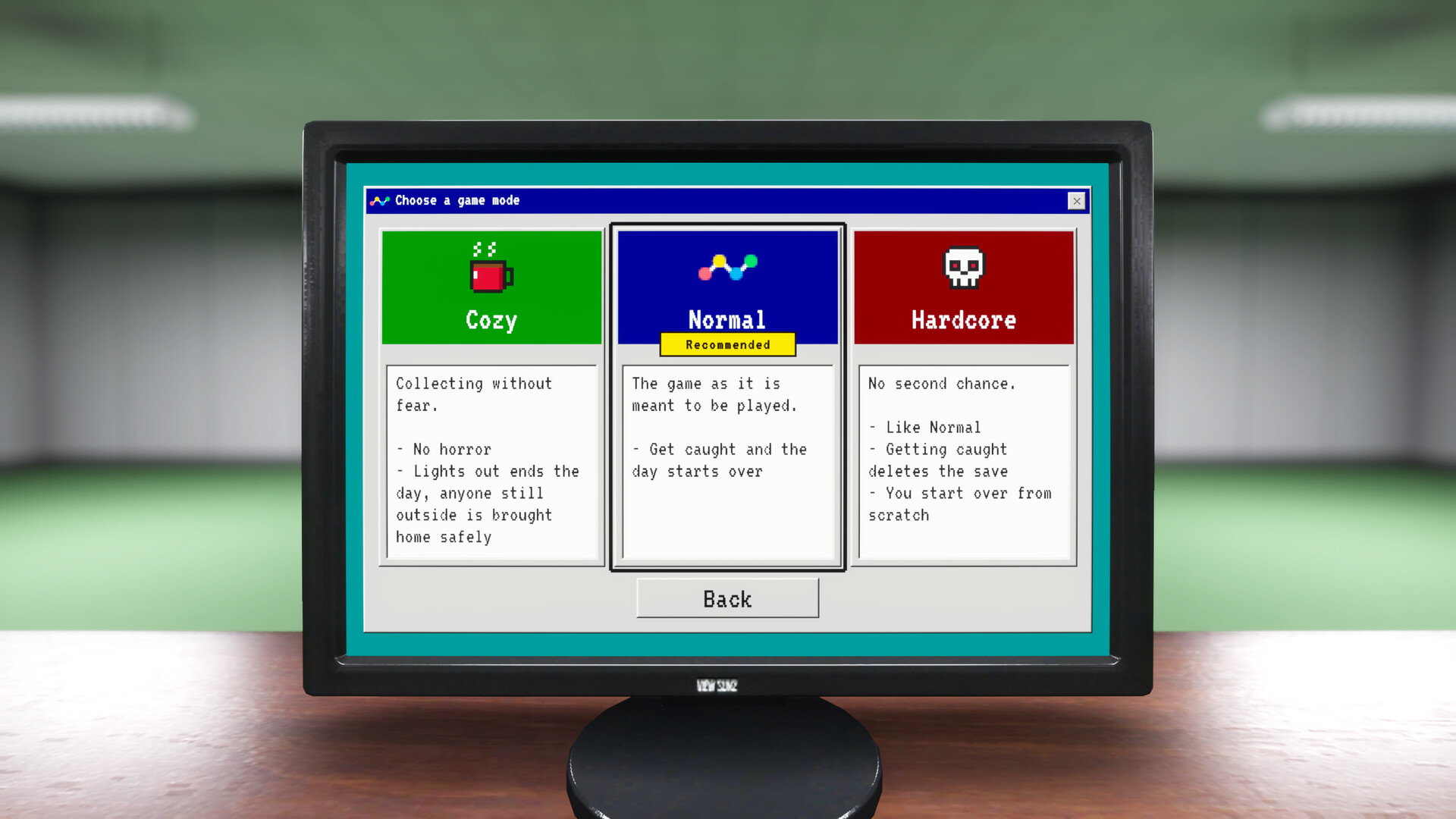
Get Playrooms and Keep Your Progress
Playrooms is available for Windows PC on Steam as a paid full game, alongside the free Playrooms Demo. To keep progressing, return to the safe office and advance through normal shifts; the game maintains a checkpoint from the start of the morning.
Demo and Full-Game Questions
- How do I download the Playrooms demo?
- Open the separate Playrooms Demo page on Steam and select Install Demo. The demo is free, so you can use it to try the game before purchasing the full release. Make sure you open the demo product when you want that download.
- What does the full game add to the demo?
- The full release expands the demo with five additional rooms, robot tools, more upgrades and new dark-room events. It also provides the complete story and includes Steam achievements. Choose the full game when you want to continue beyond the demo's version of the experience.
- Is the full version of Playrooms free?
- No. Playrooms is a paid game on Steam, while Playrooms Demo is free. Use the separate demo download if you want to try it before buying.
Platforms, Controllers and PC Setup
- Which platforms support Playrooms, including Xbox?
- Playrooms and Playrooms Demo list Windows PC releases on Steam. Their official platform listings do not list Xbox, other consoles, macOS or Linux versions. Choose the Windows Steam product when downloading either the demo or the full game.
- Can I use a controller to play?
- Yes. The full game and demo list full controller support on Steam. The full game's features also include DualShock Controller Support and DualSense Controller Support.
- What are the full game's minimum PC requirements?
- The listed minimum operating system is Windows 10 64-bit, with an Intel Core i5-7600K or AMD Ryzen 5 1600 processor and 8 GB RAM. The graphics requirement is an NVIDIA GTX 1060 with 6 GB or an AMD RX 580. The listing also requires DirectX 11 and 10 GB of available storage.
- How much storage do the demo and full game need?
- Playrooms lists 10 GB of available storage, while Playrooms Demo lists 4 GB. Check the requirement for the product you are installing when making space on your PC.
- Which languages are supported?
- The full game lists English, German, French, Italian, Spanish - Spain and Portuguese - Portugal, all with full audio support. The demo lists English and German with full audio support, so its language selection differs from the full release.
Saving, Release Date and Future Chapters
- How do I save my progress in Playrooms?
- Return to the safe office and advance through normal shifts; Playrooms keeps a checkpoint from the beginning of the morning. Restart day reloads that checkpoint and discards work completed afterward. The full game also supports Steam Cloud, but plan your stopping point around normal shift progression.
- When was Playrooms released?
- The full game launched on November 4, 2026. Playrooms Demo was released earlier, on October 12, 2026. The full game is already released, so use its Steam product page when you want the paid version.
- What is planned for Chapter 2?
- Chapter 2 is planned as a free story continuation for existing owners, with a tentative January 2027 target. The announced estimate is three to four additional hours of play. Treat that month as a target rather than a fixed release date when deciding when to return.
Quick Answers for Your First Shifts
- What should I do when the game begins?
- Read the opening computer message, launch light.exe, collect nearby balls and unload them into a pit, then return to the starting office when the work period is ending.
- How do I earn money for keys and equipment?
- Deliver balls into the collection system to earn money for skills, equipment and keys; picking them up without storing them does not complete that part of the job.
- How do I unlock Sprint and Crouch?
- Fill Ball Pit 1 with 1,500 balls to unlock Sprint and Ball Pit 3 with 5,000 balls to unlock Crouch.
- What is a practical room order?
- Progress from the Playroom through the Waiting Area, Backroom, Poolroom, School, Office and Hotel, buying the relevant keys as you earn enough to open each area.
- Do I need to finish cleaning an area before buying another key?
- No; you can buy the next key while loose balls remain in the previous area, then return later when you want to finish that cleanup.
- How do I move balls into the Waiting Area intake?
- Use the Push Broom, once available, to push nearby groups toward the suction intake, and collect isolated balls by hand when sweeping them together would be awkward.
- Do floating Poolroom balls count as stored?
- No; balls floating on the water still need to reach the designated collection system, so move them into collection before counting that work toward your pit progress.
- Where can I sprint in the School?
- The stairs are exempt from the School's running restriction, but walk through corridors and release Sprint before leaving a staircase for a hallway.
- What should I do when an Office telephone rings?
- Interrupt collection, locate the ringing telephone and answer promptly, following the Office message's instruction to avoid delaying your response.
- How should I track Hotel rooms?
- Match numbered doors to the hallway Cleaning Schedule and mark each room after clearing its balls, using the numbers to track your work across visits.
- Do I need every collectible and loose ball to finish?
- No; the ending requires all eight ball pits and the final exit, while leftover loose balls, Sparrows and office decorations are separate completion goals.